Abstract
The Cluster Observability Operator (COO) is an optional OpenShift Container Platform Operator that enables administrators to create standalone monitoring stacks that are independently configurable for use by different services and users.
The COO complements the built-in monitoring capabilities of OpenShift Container Platform. You can deploy it in parallel with the default platform and user workload monitoring stacks managed by the Cluster Monitoring Operator (CMO).
These release notes track the development of the Cluster Observability Operator in OpenShift Container Platform.
COO is now enabled for OpenShift Container Platform platform monitoring. (COO-476)
operatorframework.io/cluster-monitoring=true annotation to the OLM bundle. (COO-483)
UIPlugin CR when created. The support level is based on the plugin type, with values of DevPreview, TechPreview, or GeneralAvailability. (COO-318)
scheme and tlsConfig fields in the Prometheus CR. (COO-219)
The extended Technical Preview for the troubleshooting panel adds support for correlating traces with Kubernetes resources and directly with other observable signals including logs, alerts, metrics, and network events. (COO-450)
openshift-tracing / platform instance and the platform tenant.
The following table provides information about which features are available depending on the version of Cluster Observability Operator and OpenShift Container Platform:
| COO Version | OCP Versions | Distributed Tracing | Logging | Troubleshooting Panel |
|---|---|---|---|---|
| 1.0+ | 4.12 - 4.15 | ✔ | ✔ | ✘ |
| 1.0+ | 4.16+ | ✔ | ✔ | ✔ |
openshift-operators. With this release, the defaullt namespace changes to openshift-cluster-observability-operator. (COO-32)
korrel8r was only able to parse time series selector expressions. With this release, korrel8r can parse any valid PromQL expression to extract the time series selectors that it uses for correlation. (COO-558)
The following table provides information about which features are available depending on older version of Cluster Observability Operator and OpenShift Container Platform:
| COO Version | OCP Versions | Dashboards | Distributed Tracing | Logging | Troubleshooting Panel |
|---|---|---|---|---|---|
| 0.2.0 | 4.11 | ✔ | ✘ | ✘ | ✘ |
| 0.3.0+, 0.4.0+ | 4.11 - 4.15 | ✔ | ✔ | ✔ | ✘ |
| 0.3.0+, 0.4.0+ | 4.16+ | ✔ | ✔ | ✔ | ✔ |
The following advisory is available for Cluster Observability Operator 0.4.1:
consoles.operator.openshift.io resource still contained console-dashboards-plugin. This release resolves the issue. (COO-152)
The following advisory is available for Cluster Observability Operator 0.4.0:
. Alternatively, on versions 4.16+, you can access it in the web console by clicking on Observe → Alerting.
For more information, see troubleshooting UI plugin.
For more information, see distributed tracing UI plugin.
TempoStack and TempoMonolithic instances going forward.
The following advisory is available for Cluster Observability Operator 0.3.2:
MonitoringStack components.
Available state and the logging pod was not created, when installed on a specific version of OpenShift Container Platform. This release resolves the issue. (COO-260)
The following advisory is available for Cluster Observability Operator 0.3.0:
The following advisory is available for Cluster Observability Operator 0.2.0:
The following advisory is available for Cluster Observability Operator 0.1.3:
http://<prometheus_url>:9090/graph, the following error message would display: Error opening React index.html: open web/ui/static/react/index.html: no such file or directory. This release resolves the issue, and the Prometheus web UI now displays correctly. (COO-34)
The following advisory is available for Cluster Observability Operator 0.1.2:
localhost), which resulted in a 502 Bad Gateway error if you tried to reach the Thanos Querier service. With this release, the Thanos Querier configuration has been updated so that the component now listens on the default port (10902), thereby resolving the issue. As a result of this change, you can also now modify the port via server side apply (SSA) and add a proxy chain, if required. (COO-14)
The following advisory is available for Cluster Observability Operator 0.1.1:
This release updates the Cluster Observability Operator to support installing the Operator in restricted networks or disconnected environments.
This release makes a Technology Preview version of the Cluster Observability Operator available on OperatorHub.
The Cluster Observability Operator (COO) is an optional component of the OpenShift Container Platform designed for creating and managing highly customizable monitoring stacks. It enables cluster administrators to automate configuration and management of monitoring needs extensively, offering a more tailored and detailed view of each namespace compared to the default OpenShift Container Platform monitoring system.
The COO deploys the following monitoring components:
The COO components function independently of the default in-cluster monitoring stack, which is deployed and managed by the Cluster Monitoring Operator (CMO). Monitoring stacks deployed by the two Operators do not conflict. You can use a COO monitoring stack in addition to the default platform monitoring components deployed by the CMO.
The key differences between COO and the default in-cluster monitoring stack are shown in the following table:
| Feature | COO | Default monitoring stack |
|---|---|---|
| Scope and integration | Offers comprehensive monitoring and analytics for enterprise-level needs, covering cluster and workload performance. However, it lacks direct integration with OpenShift Container Platform and typically requires an external Grafana instance for dashboards. | Limited to core components within the cluster, for example, API server and etcd, and to OpenShift-specific namespaces. There is deep integration into OpenShift Container Platform including console dashboards and alert management in the console. |
| Configuration and customization | Broader configuration options including data retention periods, storage methods, and collected data types. The COO can delegate ownership of single configurable fields in custom resources to users by using Server-Side Apply (SSA), which enhances customization. | Built-in configurations with limited customization options. |
| Data retention and storage | Long-term data retention, supporting historical analysis and capacity planning | Shorter data retention times, focusing on short-term monitoring and real-time detection. |
Deploying COO helps you address monitoring requirements that are hard to achieve using the default monitoring stack.
COO is ideal for users who need high customizability, scalability, and long-term data retention, especially in complex, multi-tenant enterprise environments.
Enterprise users require in-depth monitoring capabilities for OpenShift Container Platform clusters, including advanced performance analysis, long-term data retention, trend forecasting, and historical analysis. These features help enterprises better understand resource usage, prevent performance issues, and optimize resource allocation.
With multi-tenancy support, COO allows different teams to configure monitoring views for their projects and applications, making it suitable for teams with flexible monitoring needs.
COO provides fine-grained monitoring and customizable observability views for in-depth troubleshooting, anomaly detection, and performance tuning during development and operations.
Server-Side Apply is a feature that enables collaborative management of Kubernetes resources. The control plane tracks how different users and controllers manage fields within a Kubernetes object. It introduces the concept of field managers and tracks ownership of fields. This centralized control provides conflict detection and resolution, and reduces the risk of unintended overwrites.
Compared to Client-Side Apply, it is more declarative, and tracks field management instead of last applied state.
managedFields field within metadata.
Procedure
Add a MonitoringStack resource using the following configuration:
Example MonitoringStack object
apiVersion: monitoring.rhobs/v1alpha1
kind: MonitoringStack
metadata:
labels:
coo: example
name: sample-monitoring-stack
namespace: coo-demo
spec:
logLevel: debug
retention: 1d
resourceSelector:
matchLabels:
app: demo
A Prometheus resource named sample-monitoring-stack is generated in the coo-demo namespace. Retrieve the managed fields of the generated Prometheus resource by running the following command:
$ oc -n coo-demo get Prometheus.monitoring.rhobs -oyaml --show-managed-fields
Example output
managedFields:
- apiVersion: monitoring.rhobs/v1
fieldsType: FieldsV1
fieldsV1:
f:metadata:
f:labels:
f:app.kubernetes.io/managed-by: {}
f:app.kubernetes.io/name: {}
f:app.kubernetes.io/part-of: {}
f:ownerReferences:
k:{"uid":"81da0d9a-61aa-4df3-affc-71015bcbde5a"}: {}
f:spec:
f:additionalScrapeConfigs: {}
f:affinity:
f:podAntiAffinity:
f:requiredDuringSchedulingIgnoredDuringExecution: {}
f:alerting:
f:alertmanagers: {}
f:arbitraryFSAccessThroughSMs: {}
f:logLevel: {}
f:podMetadata:
f:labels:
f:app.kubernetes.io/component: {}
f:app.kubernetes.io/part-of: {}
f:podMonitorSelector: {}
f:replicas: {}
f:resources:
f:limits:
f:cpu: {}
f:memory: {}
f:requests:
f:cpu: {}
f:memory: {}
f:retention: {}
f:ruleSelector: {}
f:rules:
f:alert: {}
f:securityContext:
f:fsGroup: {}
f:runAsNonRoot: {}
f:runAsUser: {}
f:serviceAccountName: {}
f:serviceMonitorSelector: {}
f:thanos:
f:baseImage: {}
f:resources: {}
f:version: {}
f:tsdb: {}
manager: observability-operator
operation: Apply
- apiVersion: monitoring.rhobs/v1
fieldsType: FieldsV1
fieldsV1:
f:status:
.: {}
f:availableReplicas: {}
f:conditions:
.: {}
k:{"type":"Available"}:
.: {}
f:lastTransitionTime: {}
f:observedGeneration: {}
f:status: {}
f:type: {}
k:{"type":"Reconciled"}:
.: {}
f:lastTransitionTime: {}
f:observedGeneration: {}
f:status: {}
f:type: {}
f:paused: {}
f:replicas: {}
f:shardStatuses:
.: {}
k:{"shardID":"0"}:
.: {}
f:availableReplicas: {}
f:replicas: {}
f:shardID: {}
f:unavailableReplicas: {}
f:updatedReplicas: {}
f:unavailableReplicas: {}
f:updatedReplicas: {}
manager: PrometheusOperator
operation: Update
subresource: status
metadata.managedFields values, and observe that some fields in metadata and spec are managed by the MonitoringStack resource.
Modify a field that is not controlled by the MonitoringStack resource:
Change spec.enforcedSampleLimit, which is a field not set by the MonitoringStack resource. Create the file prom-spec-edited.yaml:
prom-spec-edited.yaml
apiVersion: monitoring.rhobs/v1 kind: Prometheus metadata: name: sample-monitoring-stack namespace: coo-demo spec: enforcedSampleLimit: 1000
Apply the YAML by running the following command:
$ oc apply -f ./prom-spec-edited.yaml --server-side
You must use the --server-side flag.
Get the changed Prometheus object and note that there is one more section in managedFields which has spec.enforcedSampleLimit:
$ oc get prometheus -n coo-demo
Example output
managedFields: 1 - apiVersion: monitoring.rhobs/v1 fieldsType: FieldsV1 fieldsV1: f:metadata: f:labels: f:app.kubernetes.io/managed-by: {} f:app.kubernetes.io/name: {} f:app.kubernetes.io/part-of: {} f:spec: f:enforcedSampleLimit: {} 2 manager: kubectl operation: Apply
Modify a field that is managed by the MonitoringStack resource:
Change spec.LogLevel, which is a field managed by the MonitoringStack resource, using the following YAML configuration:
# changing the logLevel from debug to info
apiVersion: monitoring.rhobs/v1
kind: Prometheus
metadata:
name: sample-monitoring-stack
namespace: coo-demo
spec:
logLevel: info 1spec.logLevel has been added
Apply the YAML by running the following command:
$ oc apply -f ./prom-spec-edited.yaml --server-side
Example output
error: Apply failed with 1 conflict: conflict with "observability-operator": .spec.logLevel Please review the fields above--they currently have other managers. Here are the ways you can resolve this warning: * If you intend to manage all of these fields, please re-run the apply command with the `--force-conflicts` flag. * If you do not intend to manage all of the fields, please edit your manifest to remove references to the fields that should keep their current managers. * You may co-own fields by updating your manifest to match the existing value; in this case, you'll become the manager if the other manager(s) stop managing the field (remove it from their configuration). See https://kubernetes.io/docs/reference/using-api/server-side-apply/#conflicts
spec.logLevel cannot be changed using Server-Side Apply, because it is already managed by observability-operator.
Use the --force-conflicts flag to force the change.
$ oc apply -f ./prom-spec-edited.yaml --server-side --force-conflicts
Example output
prometheus.monitoring.rhobs/sample-monitoring-stack serverside-applied
With --force-conflicts flag, the field can be forced to change, but since the same field is also managed by the MonitoringStack resource, the Observability Operator detects the change, and reverts it back to the value set by the MonitoringStack resource.
Some Prometheus fields generated by the MonitoringStack resource are influenced by the fields in the MonitoringStack spec stanza, for example, logLevel. These can be changed by changing the MonitoringStack spec.
To change the logLevel in the Prometheus object, apply the following YAML to change the MonitoringStack resource:
apiVersion: monitoring.rhobs/v1alpha1
kind: MonitoringStack
metadata:
name: sample-monitoring-stack
labels:
coo: example
spec:
logLevel: infoTo confirm that the change has taken place, query for the log level by running the following command:
$ oc -n coo-demo get Prometheus.monitoring.rhobs -o=jsonpath='{.items[0].spec.logLevel}'Example output
info
If a new version of an Operator generates a field that was previously generated and controlled by an actor, the value set by the actor will be overridden.
For example, you are managing a field enforcedSampleLimit which is not generated by the MonitoringStack resource. If the Observability Operator is upgraded, and the new version of the Operator generates a value for enforcedSampleLimit, this will overide the value you have previously set.
Prometheus object generated by the MonitoringStack resource may contain some fields which are not explicitly set by the monitoring stack. These fields appear because they have default values.
Additional resources
As a cluster administrator, you can install or remove the Cluster Observability Operator (COO) from OperatorHub by using the OpenShift Container Platform web console. OperatorHub is a user interface that works in conjunction with Operator Lifecycle Manager (OLM), which installs and manages Operators on a cluster.
Install the Cluster Observability Operator (COO) from OperatorHub by using the OpenShift Container Platform web console.
Prerequisites
cluster-admin cluster role.
Procedure
cluster observability operator in the Filter by keyword box.
Read the information about the Operator, and configure the following installation settings:
Verification
Additional resources
If you have installed the Cluster Observability Operator (COO) by using OperatorHub, you can uninstall it in the OpenShift Container Platform web console.
Prerequisites
cluster-admin cluster role.
Procedure
for this entry and select Uninstall Operator.
Verification
You can monitor metrics for a service by configuring monitoring stacks managed by the Cluster Observability Operator (COO).
To test monitoring a service, follow these steps:
ServiceMonitor object that specifies how the service is to be monitored by the COO.
MonitoringStack object to discover the ServiceMonitor object.
This configuration deploys a sample service named prometheus-coo-example-app in the user-defined ns1-coo project. The service exposes the custom version metric.
Prerequisites
cluster-admin cluster role or as a user with administrative permissions for the namespace.
Procedure
Create a YAML file named prometheus-coo-example-app.yaml that contains the following configuration details for a namespace, deployment, and service:
apiVersion: v1
kind: Namespace
metadata:
name: ns1-coo
---
apiVersion: apps/v1
kind: Deployment
metadata:
labels:
app: prometheus-coo-example-app
name: prometheus-coo-example-app
namespace: ns1-coo
spec:
replicas: 1
selector:
matchLabels:
app: prometheus-coo-example-app
template:
metadata:
labels:
app: prometheus-coo-example-app
spec:
containers:
- image: ghcr.io/rhobs/prometheus-example-app:0.4.2
imagePullPolicy: IfNotPresent
name: prometheus-coo-example-app
---
apiVersion: v1
kind: Service
metadata:
labels:
app: prometheus-coo-example-app
name: prometheus-coo-example-app
namespace: ns1-coo
spec:
ports:
- port: 8080
protocol: TCP
targetPort: 8080
name: web
selector:
app: prometheus-coo-example-app
type: ClusterIPApply the configuration to the cluster by running the following command:
$ oc apply -f prometheus-coo-example-app.yaml
Verify that the pod is running by running the following command and observing the output:
$ oc -n ns1-coo get pod
Example output
NAME READY STATUS RESTARTS AGE prometheus-coo-example-app-0927545cb7-anskj 1/1 Running 0 81m
To use the metrics exposed by the sample service you created in the "Deploying a sample service for Cluster Observability Operator" section, you must configure monitoring components to scrape metrics from the /metrics endpoint.
You can create this configuration by using a ServiceMonitor object that specifies how the service is to be monitored, or a PodMonitor object that specifies how a pod is to be monitored. The ServiceMonitor object requires a Service object. The PodMonitor object does not, which enables the MonitoringStack object to scrape metrics directly from the metrics endpoint exposed by a pod.
This procedure shows how to create a ServiceMonitor object for a sample service named prometheus-coo-example-app in the ns1-coo namespace.
Prerequisites
cluster-admin cluster role or as a user with administrative permissions for the namespace.
You have deployed the prometheus-coo-example-app sample service in the ns1-coo namespace.
The prometheus-coo-example-app sample service does not support TLS authentication.
Procedure
Create a YAML file named example-coo-app-service-monitor.yaml that contains the following ServiceMonitor object configuration details:
apiVersion: monitoring.rhobs/v1
kind: ServiceMonitor
metadata:
labels:
k8s-app: prometheus-coo-example-monitor
name: prometheus-coo-example-monitor
namespace: ns1-coo
spec:
endpoints:
- interval: 30s
port: web
scheme: http
selector:
matchLabels:
app: prometheus-coo-example-app
This configuration defines a ServiceMonitor object that the MonitoringStack object will reference to scrape the metrics data exposed by the prometheus-coo-example-app sample service.
Apply the configuration to the cluster by running the following command:
$ oc apply -f example-coo-app-service-monitor.yaml
Verify that the ServiceMonitor resource is created by running the following command and observing the output:
$ oc -n ns1-coo get servicemonitors.monitoring.rhobs
Example output
NAME AGE prometheus-coo-example-monitor 81m
To scrape the metrics data exposed by the target prometheus-coo-example-app service, create a MonitoringStack object that references the ServiceMonitor object you created in the "Specifying how a service is monitored for Cluster Observability Operator" section. This MonitoringStack object can then discover the service and scrape the exposed metrics data from it.
Prerequisites
cluster-admin cluster role or as a user with administrative permissions for the namespace.
prometheus-coo-example-app sample service in the ns1-coo namespace.
ServiceMonitor object named prometheus-coo-example-monitor in the ns1-coo namespace.
Procedure
MonitoringStack object configuration. For this example, name the file example-coo-monitoring-stack.yaml.
Add the following MonitoringStack object configuration details:
Example MonitoringStack object
apiVersion: monitoring.rhobs/v1alpha1
kind: MonitoringStack
metadata:
name: example-coo-monitoring-stack
namespace: ns1-coo
spec:
logLevel: debug
retention: 1d
resourceSelector:
matchLabels:
k8s-app: prometheus-coo-example-monitor
Apply the MonitoringStack object by running the following command:
$ oc apply -f example-coo-monitoring-stack.yaml
Verify that the MonitoringStack object is available by running the following command and inspecting the output:
$ oc -n ns1-coo get monitoringstack
Example output
NAME AGE example-coo-monitoring-stack 81m
Run the following comand to retrieve information about the active targets from Prometheus and filter the output to list only targets labeled with app=prometheus-coo-example-app. This verifies which targets are discovered and actively monitored by Prometheus with this specific label.
$ oc -n ns1-coo exec -c prometheus prometheus-example-coo-monitoring-stack-0 -- curl -s 'http://localhost:9090/api/v1/targets' | jq '.data.activeTargets[].discoveredLabels | select(.__meta_kubernetes_endpoints_label_app=="prometheus-coo-example-app")'
Example output
{
"__address__": "10.129.2.25:8080",
"__meta_kubernetes_endpoint_address_target_kind": "Pod",
"__meta_kubernetes_endpoint_address_target_name": "prometheus-coo-example-app-5d8cd498c7-9j2gj",
"__meta_kubernetes_endpoint_node_name": "ci-ln-8tt8vxb-72292-6cxjr-worker-a-wdfnz",
"__meta_kubernetes_endpoint_port_name": "web",
"__meta_kubernetes_endpoint_port_protocol": "TCP",
"__meta_kubernetes_endpoint_ready": "true",
"__meta_kubernetes_endpoints_annotation_endpoints_kubernetes_io_last_change_trigger_time": "2024-11-05T11:24:09Z",
"__meta_kubernetes_endpoints_annotationpresent_endpoints_kubernetes_io_last_change_trigger_time": "true",
"__meta_kubernetes_endpoints_label_app": "prometheus-coo-example-app",
"__meta_kubernetes_endpoints_labelpresent_app": "true",
"__meta_kubernetes_endpoints_name": "prometheus-coo-example-app",
"__meta_kubernetes_namespace": "ns1-coo",
"__meta_kubernetes_pod_annotation_k8s_ovn_org_pod_networks": "{\"default\":{\"ip_addresses\":[\"10.129.2.25/23\"],\"mac_address\":\"0a:58:0a:81:02:19\",\"gateway_ips\":[\"10.129.2.1\"],\"routes\":[{\"dest\":\"10.128.0.0/14\",\"nextHop\":\"10.129.2.1\"},{\"dest\":\"172.30.0.0/16\",\"nextHop\":\"10.129.2.1\"},{\"dest\":\"100.64.0.0/16\",\"nextHop\":\"10.129.2.1\"}],\"ip_address\":\"10.129.2.25/23\",\"gateway_ip\":\"10.129.2.1\",\"role\":\"primary\"}}",
"__meta_kubernetes_pod_annotation_k8s_v1_cni_cncf_io_network_status": "[{\n \"name\": \"ovn-kubernetes\",\n \"interface\": \"eth0\",\n \"ips\": [\n \"10.129.2.25\"\n ],\n \"mac\": \"0a:58:0a:81:02:19\",\n \"default\": true,\n \"dns\": {}\n}]",
"__meta_kubernetes_pod_annotation_openshift_io_scc": "restricted-v2",
"__meta_kubernetes_pod_annotation_seccomp_security_alpha_kubernetes_io_pod": "runtime/default",
"__meta_kubernetes_pod_annotationpresent_k8s_ovn_org_pod_networks": "true",
"__meta_kubernetes_pod_annotationpresent_k8s_v1_cni_cncf_io_network_status": "true",
"__meta_kubernetes_pod_annotationpresent_openshift_io_scc": "true",
"__meta_kubernetes_pod_annotationpresent_seccomp_security_alpha_kubernetes_io_pod": "true",
"__meta_kubernetes_pod_controller_kind": "ReplicaSet",
"__meta_kubernetes_pod_controller_name": "prometheus-coo-example-app-5d8cd498c7",
"__meta_kubernetes_pod_host_ip": "10.0.128.2",
"__meta_kubernetes_pod_ip": "10.129.2.25",
"__meta_kubernetes_pod_label_app": "prometheus-coo-example-app",
"__meta_kubernetes_pod_label_pod_template_hash": "5d8cd498c7",
"__meta_kubernetes_pod_labelpresent_app": "true",
"__meta_kubernetes_pod_labelpresent_pod_template_hash": "true",
"__meta_kubernetes_pod_name": "prometheus-coo-example-app-5d8cd498c7-9j2gj",
"__meta_kubernetes_pod_node_name": "ci-ln-8tt8vxb-72292-6cxjr-worker-a-wdfnz",
"__meta_kubernetes_pod_phase": "Running",
"__meta_kubernetes_pod_ready": "true",
"__meta_kubernetes_pod_uid": "054c11b6-9a76-4827-a860-47f3a4596871",
"__meta_kubernetes_service_label_app": "prometheus-coo-example-app",
"__meta_kubernetes_service_labelpresent_app": "true",
"__meta_kubernetes_service_name": "prometheus-coo-example-app",
"__metrics_path__": "/metrics",
"__scheme__": "http",
"__scrape_interval__": "30s",
"__scrape_timeout__": "10s",
"job": "serviceMonitor/ns1-coo/prometheus-coo-example-monitor/0"
}
The above example uses jq command-line JSON processor to format the output for convenience.
To validate that the monitoring stack is working correctly, access the example service and then view the gathered metrics.
Prerequisites
cluster-admin cluster role or as a user with administrative permissions for the namespace.
prometheus-coo-example-app sample service in the ns1-coo namespace.
ServiceMonitor object named prometheus-coo-example-monitor in the ns1-coo namespace.
MonitoringStack object named example-coo-monitoring-stack in the ns1-coo namespace.
Procedure
Create a route to expose the example prometheus-coo-example-app service. From your terminal, run the command:
$ oc expose svc prometheus-coo-example-app
Execute a query on the Prometheus pod to return the total HTTP requests metric:
$ oc -n ns1-coo exec -c prometheus prometheus-example-coo-monitoring-stack-0 -- curl -s 'http://localhost:9090/api/v1/query?query=http_requests_total'
Example output (formatted using jq for convenience)
{
"status": "success",
"data": {
"resultType": "vector",
"result": [
{
"metric": {
"__name__": "http_requests_total",
"code": "200",
"endpoint": "web",
"instance": "10.129.2.25:8080",
"job": "prometheus-coo-example-app",
"method": "get",
"namespace": "ns1-coo",
"pod": "prometheus-coo-example-app-5d8cd498c7-9j2gj",
"service": "prometheus-coo-example-app"
},
"value": [
1730807483.632,
"3"
]
},
{
"metric": {
"__name__": "http_requests_total",
"code": "404",
"endpoint": "web",
"instance": "10.129.2.25:8080",
"job": "prometheus-coo-example-app",
"method": "get",
"namespace": "ns1-coo",
"pod": "prometheus-coo-example-app-5d8cd498c7-9j2gj",
"service": "prometheus-coo-example-app"
},
"value": [
1730807483.632,
"0"
]
}
]
}
}
You can use the Cluster Observability Operator (COO) to install and manage UI plugins to enhance the observability capabilities of the OpenShift Container Platform web console. The plugins extend the default functionality, providing new UI features for troubleshooting, distributed tracing, and cluster logging.
The logging UI plugin surfaces logging data in the web console on the Observe → Logs page. You can specify filters, queries, time ranges and refresh rates. The results displayed a list of collapsed logs, which can then be expanded to show more detailed information for each log.
For more information, see the logging UI plugin page.
The Cluster Observability Operator troubleshooting panel UI plugin is a Technology Preview feature only. Technology Preview features are not supported with Red Hat production service level agreements (SLAs) and might not be functionally complete. Red Hat does not recommend using them in production. These features provide early access to upcoming product features, enabling customers to test functionality and provide feedback during the development process.
For more information about the support scope of Red Hat Technology Preview features, see Technology Preview Features Support Scope.
The troubleshooting panel UI plugin for OpenShift Container Platform version 4.16+ provides observability signal correlation, powered by the open source Korrel8r project. You can use the troubleshooting panel available from the Observe → Alerting page to easily correlate metrics, logs, alerts, netflows, and additional observability signals and resources, across different data stores. Users of OpenShift Container Platform version 4.17+ can also access the troubleshooting UI panel from the Application Launcher
.
The output of Korrel8r is displayed as an interactive node graph. When you click on a node, you are automatically redirected to the corresponding web console page with the specific information for that node, for example, metric, log, or pod.
For more information, see the troubleshooting UI plugin page.
The Cluster Observability Operator distributed tracing UI plugin is a Technology Preview feature only. Technology Preview features are not supported with Red Hat production service level agreements (SLAs) and might not be functionally complete. Red Hat does not recommend using them in production. These features provide early access to upcoming product features, enabling customers to test functionality and provide feedback during the development process.
For more information about the support scope of Red Hat Technology Preview features, see Technology Preview Features Support Scope.
The distributed tracing UI plugin adds tracing-related features to the web console on the Observe → Traces page. You can follow requests through the front end and into the backend of microservices, helping you identify code errors and performance bottlenecks in distributed systems. You can select a supported TempoStack or TempoMonolithic multi-tenant instance running in the cluster and set a time range and query to view the trace data.
For more information, see the distributed tracing UI plugin page.
The logging UI plugin surfaces logging data in the OpenShift Container Platform web console on the Observe → Logs page. You can specify filters, queries, time ranges and refresh rates, with the results displayed as a list of collapsed logs, which can then be expanded to show more detailed information for each log.
When you have also deployed the Troubleshooting UI plugin on OpenShift Container Platform version 4.16+, it connects to the Korrel8r service and adds direct links from the Administration perspective, from the Observe → Logs page, to the Observe → Metrics page with a correlated PromQL query. It also adds a See Related Logs link from the Administration perspective alerting detail page, at Observe → Alerting, to the Observe → Logs page with a correlated filter set selected.
The features of the plugin are categorized as:
For Cluster Observability Operator (COO) versions, the support for these features in OpenShift Container Platform versions is shown in the following table:
| COO version | OCP versions | Features |
|---|---|---|
| 0.3.0+ | 4.12 |
|
| 0.3.0+ | 4.13 |
|
| 0.3.0+ | 4.14+ |
|
Prerequisites
cluster-admin role.
LokiStack instance in your cluster.
Procedure
Select YAML view, enter the following content, and then click Create:
apiVersion: observability.openshift.io/v1alpha1
kind: UIPlugin
metadata:
name: logging
spec:
type: Logging
logging:
lokiStack:
name: logging-loki
logsLimit: 50
timeout: 30sThe Cluster Observability Operator distributed tracing UI plugin is a Technology Preview feature only. Technology Preview features are not supported with Red Hat production service level agreements (SLAs) and might not be functionally complete. Red Hat does not recommend using them in production. These features provide early access to upcoming product features, enabling customers to test functionality and provide feedback during the development process.
For more information about the support scope of Red Hat Technology Preview features, see Technology Preview Features Support Scope.
The distributed tracing UI plugin adds tracing-related features to the Administrator perspective of the OpenShift web console at Observe → Traces. You can follow requests through the front end and into the backend of microservices, helping you identify code errors and performance bottlenecks in distributed systems.
Prerequisites
cluster-admin cluster role.
Procedure
Select YAML view, enter the following content, and then press Create:
apiVersion: observability.openshift.io/v1alpha1 kind: UIPlugin metadata: name: distributed-tracing spec: type: DistributedTracing
Prerequisites
cluster-admin cluster role.
TempoStack or TempoMonolithic multi-tenant instance in the cluster.
Procedure
Select a TempoStack or TempoMonolithic multi-tenant instance and set a time range and query for the traces to be loaded.
The traces are displayed on a scatter-plot showing the trace start time, duration, and number of spans. Underneath the scatter plot, there is a list of traces showing information such as the Trace Name, number of Spans, and Duration.
Click on a trace name link.
The trace detail page for the selected trace contains a Gantt Chart of all of the spans within the trace. Select a span to show a breakdown of the configured attributes.
The Cluster Observability Operator troubleshooting panel UI plugin is a Technology Preview feature only. Technology Preview features are not supported with Red Hat production service level agreements (SLAs) and might not be functionally complete. Red Hat does not recommend using them in production. These features provide early access to upcoming product features, enabling customers to test functionality and provide feedback during the development process.
For more information about the support scope of Red Hat Technology Preview features, see Technology Preview Features Support Scope.
The troubleshooting UI plugin for OpenShift Container Platform version 4.16+ provides observability signal correlation, powered by the open source Korrel8r project. With the troubleshooting panel that is available under Observe → Alerting, you can easily correlate metrics, logs, alerts, netflows, and additional observability signals and resources, across different data stores. Users of OpenShift Container Platform version 4.17+ can also access the troubleshooting UI panel from the Application Launcher
.
When you install the troubleshooting UI plugin, a Korrel8r service named korrel8r is deployed in the same namespace, and it is able to locate related observability signals and Kubernetes resources from its correlation engine.
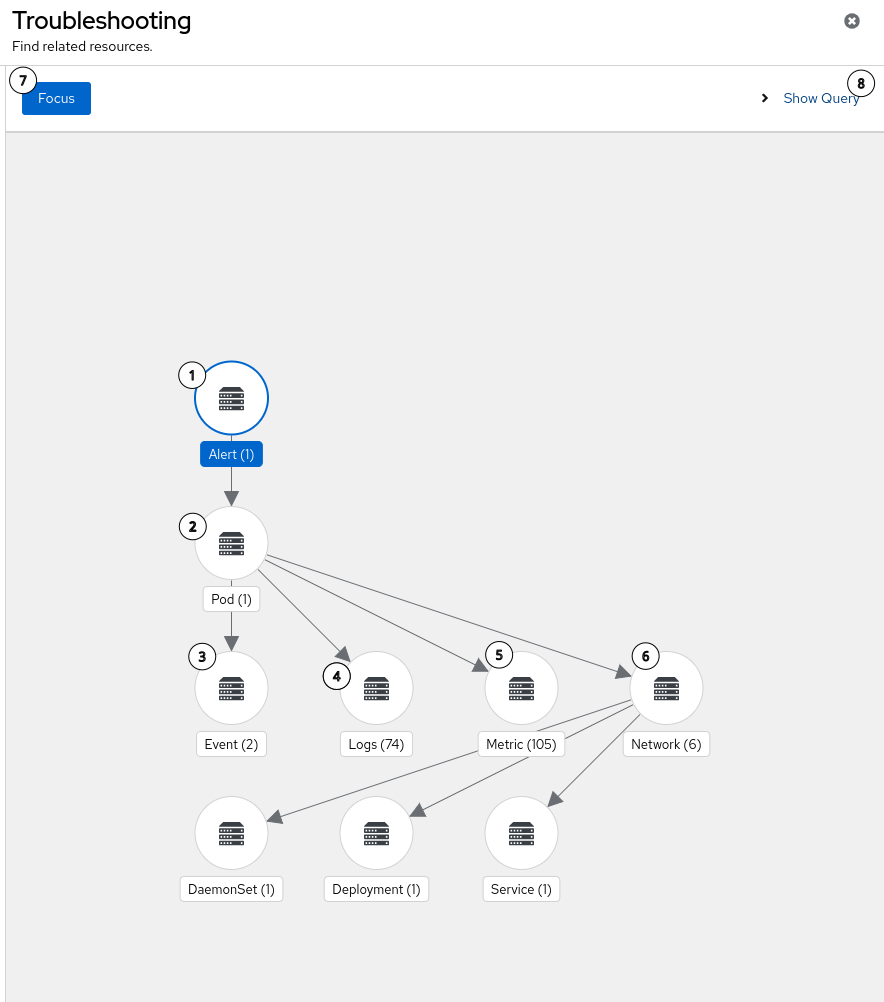
The output of Korrel8r is displayed in the form of an interactive node graph in the OpenShift Container Platform web console. Nodes in the graph represent a type of resource or signal, while edges represent relationships. When you click on a node, you are automatically redirected to the corresponding web console page with the specific information for that node, for example, metric, log, pod.
Prerequisites
cluster-admin cluster role.
Procedure
Select YAML view, enter the following content, and then press Create:
apiVersion: observability.openshift.io/v1alpha1 kind: UIPlugin metadata: name: troubleshooting-panel spec: type: TroubleshootingPanel
Prerequisites
cluster-admin cluster role. If your cluster version is 4.17+, you can access the troubleshooting UI panel from the Application Launcher
.
You have installed the Cluster Observability Operator troubleshooting UI plugin.
The troubleshooting panel relies on the observability signal stores installed in your cluster. Kuberenetes resources, alerts and metrics are always available by default in an OpenShift Container Platform cluster. Other signal types require optional components to be installed:
Procedure
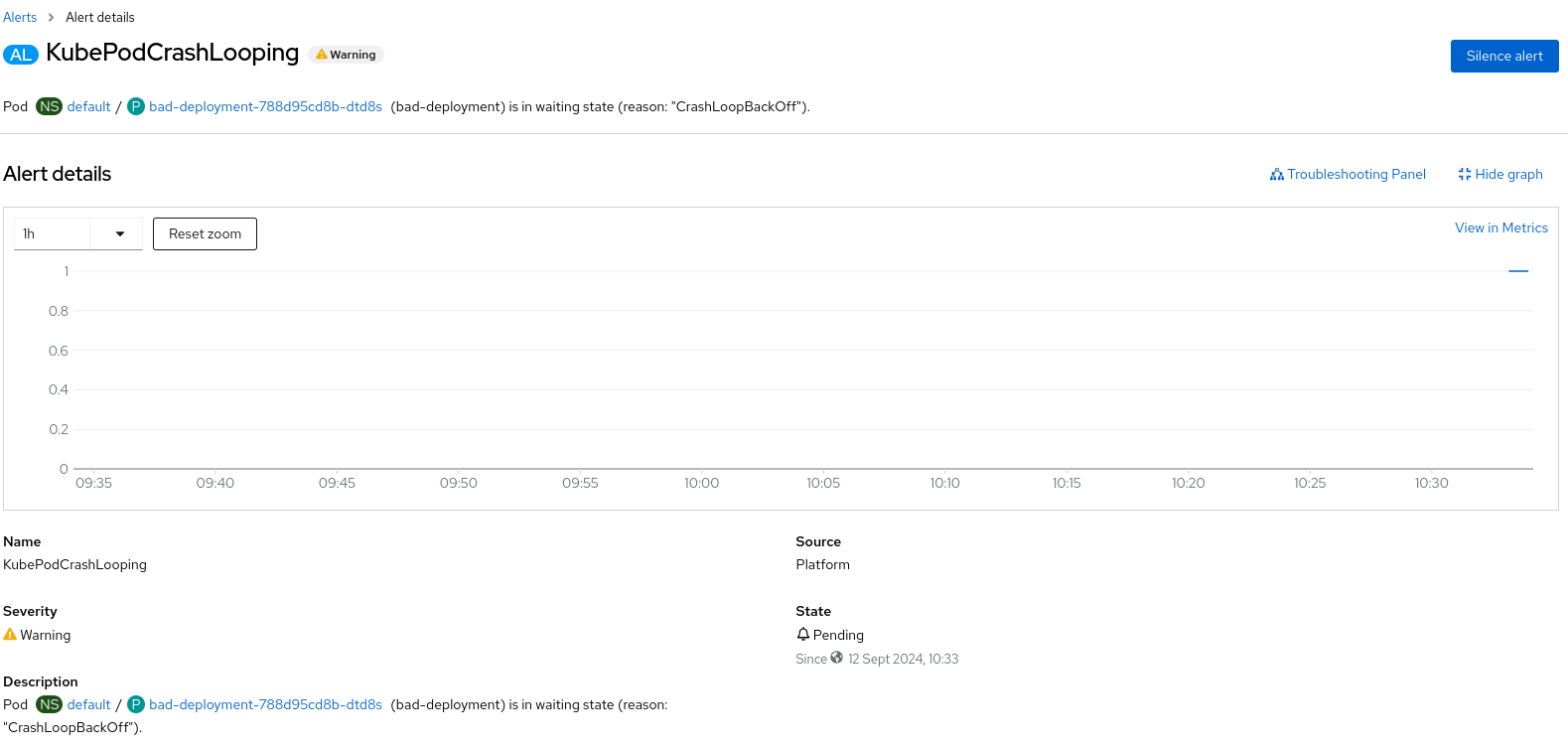
In the admin perspective of the web console, navigate to Observe → Alerting and then select an alert. If the alert has correlated items, a Troubleshooting Panel link will appear above the chart on the alert detail page.

Click on the Troubleshooting Panel link to display the panel.
korrel8r service. The results are displayed as a graph network connecting the returned signals and resources. This is a neighbourhood graph, starting at the current resource and including related objects up to 3 steps away from the starting point. Clicking on nodes in the graph takes you to the corresponding web console pages for those resouces.
You can use the troubleshooting panel to find resources relating to the chosen alert.
Clicking on a node may sometimes show fewer results than indicated on the graph. This is a known issue that will be addressed in a future release.

KubeContainerWaiting alert displayed in the web console.
Pod resource associated with this alert. Clicking on this node will open a console search showing the related pod directly.
Service, Deployment and DaemonSet resources that the pod has communicated with.
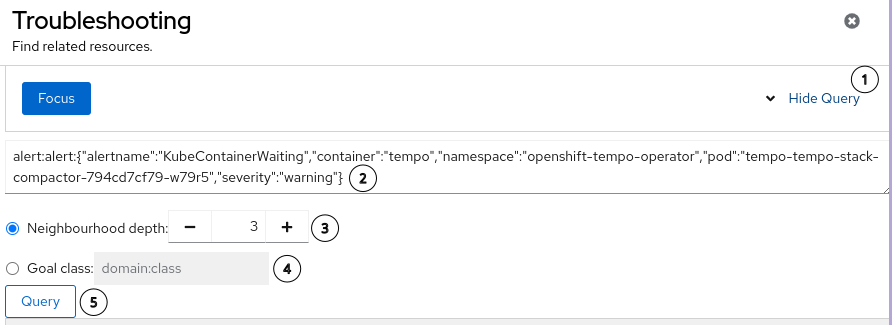
Show Query: Clicking this button enables some experimental features:

Neighbourhood depth is used to display a smaller or larger neighbourhood.
Setting a large value in a large cluster might cause the query to fail, if the number of results is too big.
Goal class results in a goal directed search instead of a neighbourhood search. A goal directed search shows all paths from the starting point to the goal class, which indicates a type of resource or signal. The format of the goal class is experimental and may change. Currently, the following goals are valid:
k8s:RESOURCE[VERSION.[GROUP]] identifying a kind of kuberenetes resource. For example k8s:Pod or k8s:Deployment.apps.v1.
alert:alert representing any alert.
metric:metric representing any metric.
netflow:network representing any network observability network event.
log:LOG_TYPE representing stored logs, where LOG_TYPE must be one of application, infrastructure or audit.
To trigger an alert as a starting point to use in the troubleshooting UI panel, you can deploy a container that is deliberately misconfigured.
Procedure
Use the following YAML, either from the command line or in the web console, to create a broken deployment in a system namespace:
apiVersion: apps/v1 kind: Deployment metadata: name: bad-deployment namespace: default 1 spec: selector: matchLabels: app: bad-deployment template: metadata: labels: app: bad-deployment spec: containers: 2 - name: bad-deployment image: quay.io/openshift-logging/vector:5.8
default) to cause the desired alerts.
vector server with no configuration file. The server logs a few messages, and then exits with an error. Alternatively, you can deploy any container you like that is badly configured, causing it to trigger an alert.
View the alerts:
Go to Observe → Alerting and click clear all filters. View the Pending alerts.
Alerts first appear in the Pending state. They do not start Firing until the container has been crashing for some time. By viewing Pending alerts, you do not have to wait as long to see them occur.
KubeContainerWaiting, KubePodCrashLooping, or KubePodNotReady alerts and open the troubleshooting panel by clicking on the link. Alternatively, if the panel is already open, click the "Focus" button to update the graph.